How To Fix Red Eye Iphone
How To Fix Red Eye Iphone: Your Ultimate Guide
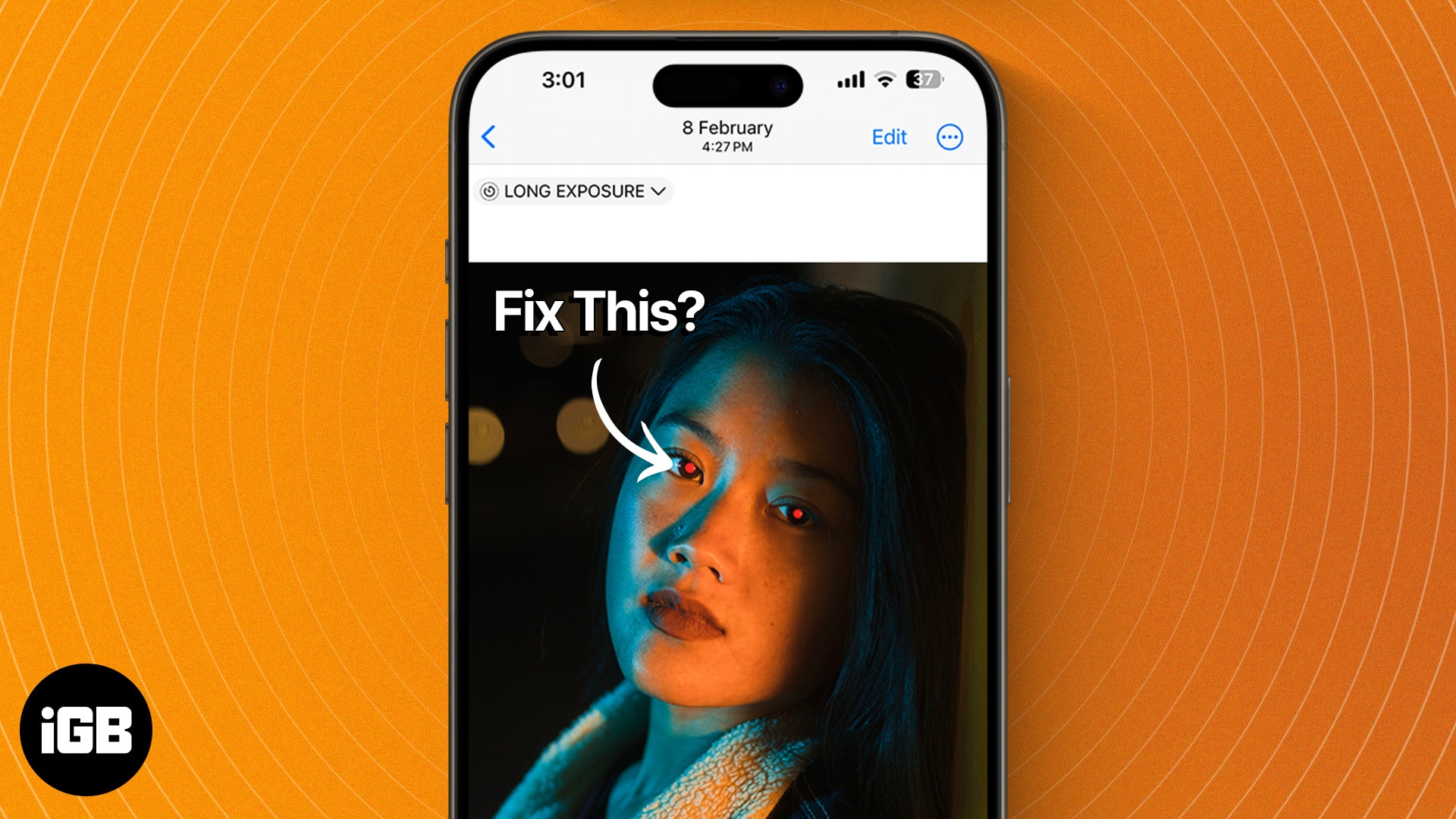
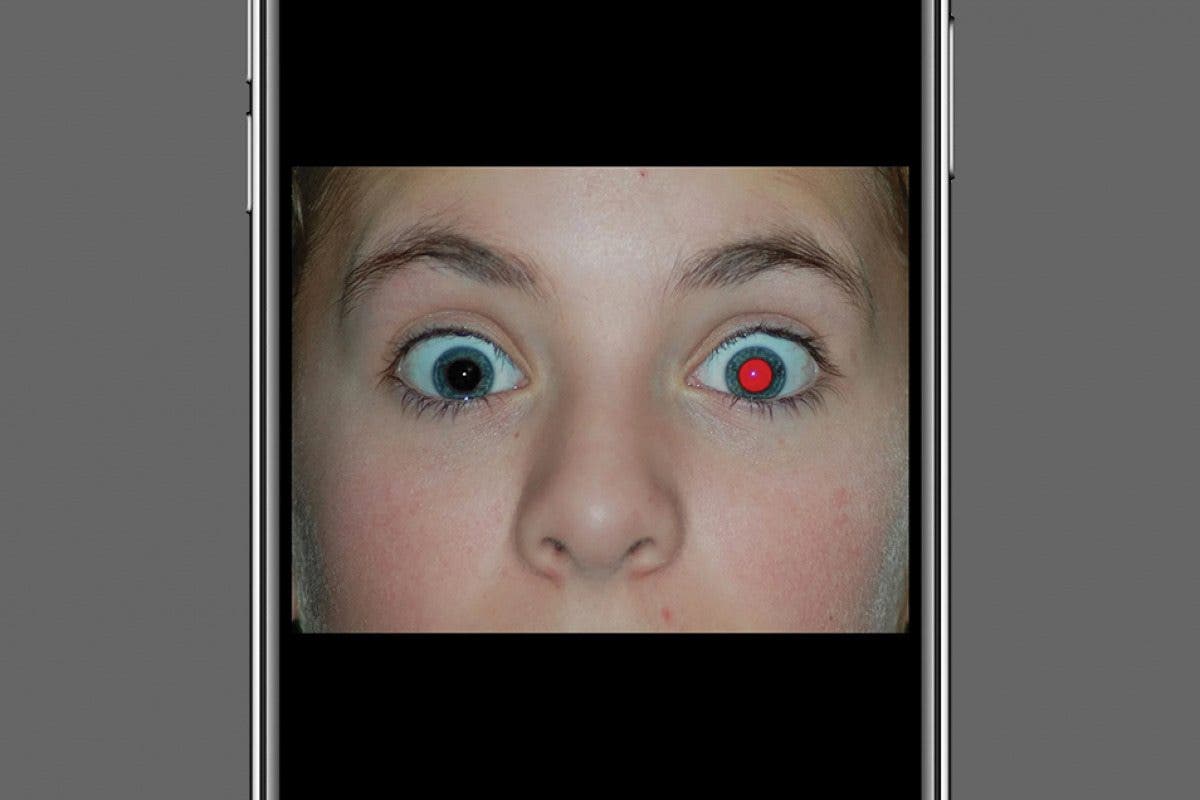
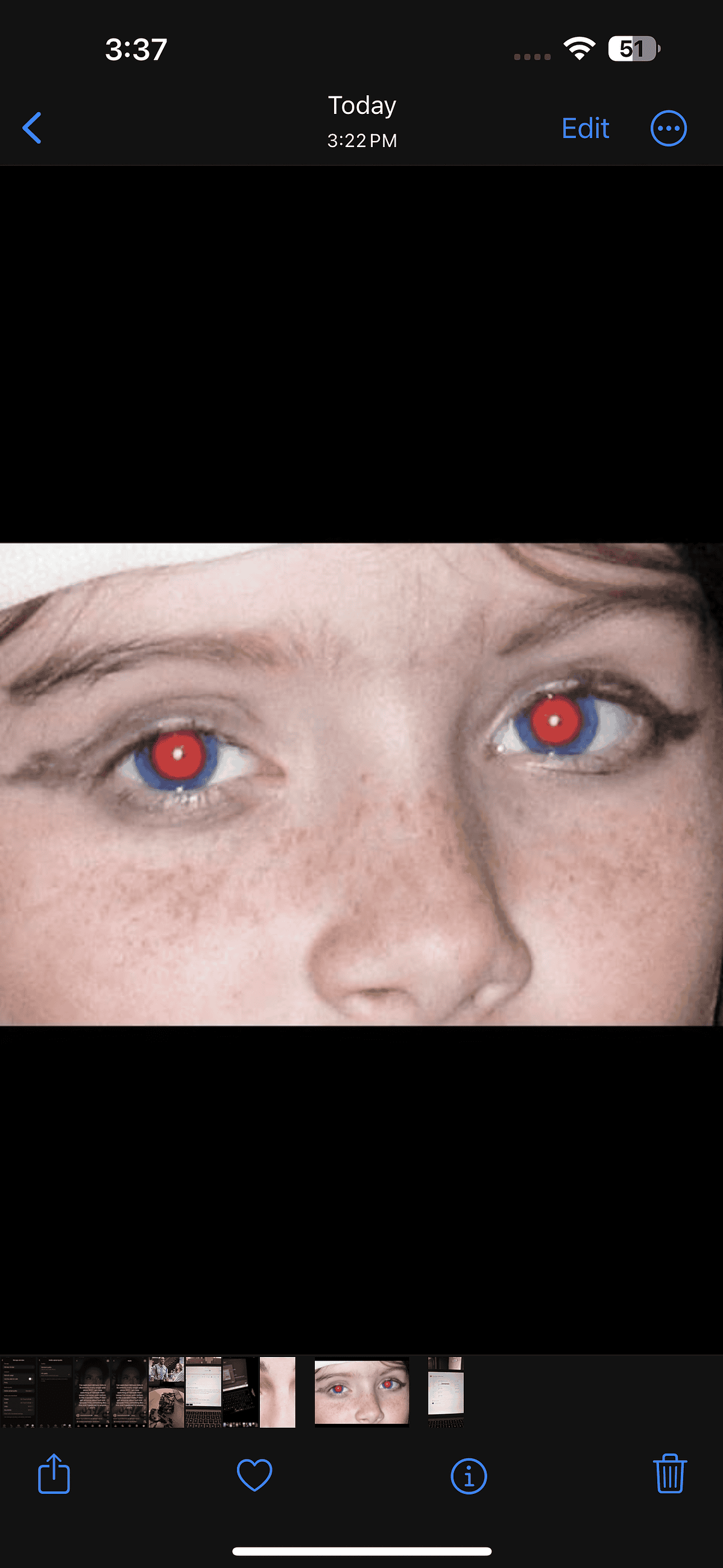
We've all been there. You capture a perfect moment—a birthday, a gathering with friends, or a holiday photo—only to look at the result and see those glaring, demonic red eyes staring back at you. It's frustrating, but don't worry! If you're wondering how to fix red eye iPhone users frequently encounter, you're in the right place.
The good news is that Apple anticipated this common photographic hiccup. Your iPhone has powerful, built-in tools that make removing red eye surprisingly quick and easy, often without needing any extra apps. We will walk you through the simplest method, plus offer some advanced techniques and prevention tips so your photos look professional every time.
Understanding the Red Eye Phenomenon
Before diving into the fix, let's quickly understand why red eye happens. It's a very common occurrence, especially when taking photos in low light using the flash.
Red eye occurs because the camera flash is too close to the lens. When the flash fires, the light travels through the pupil and reflects off the retina at the back of the eye. Since the retina is rich in blood vessels, the reflection bounces back as a reddish glow, which the camera captures.
This is generally more pronounced in dark settings because the subject's pupils are dilated (wide open), allowing more light to enter and reflect off the retina. Fortunately, knowing how to fix red eye iPhone photos is simpler than understanding the physics behind it!
The Official Apple Photos App Method: The Easiest Fix
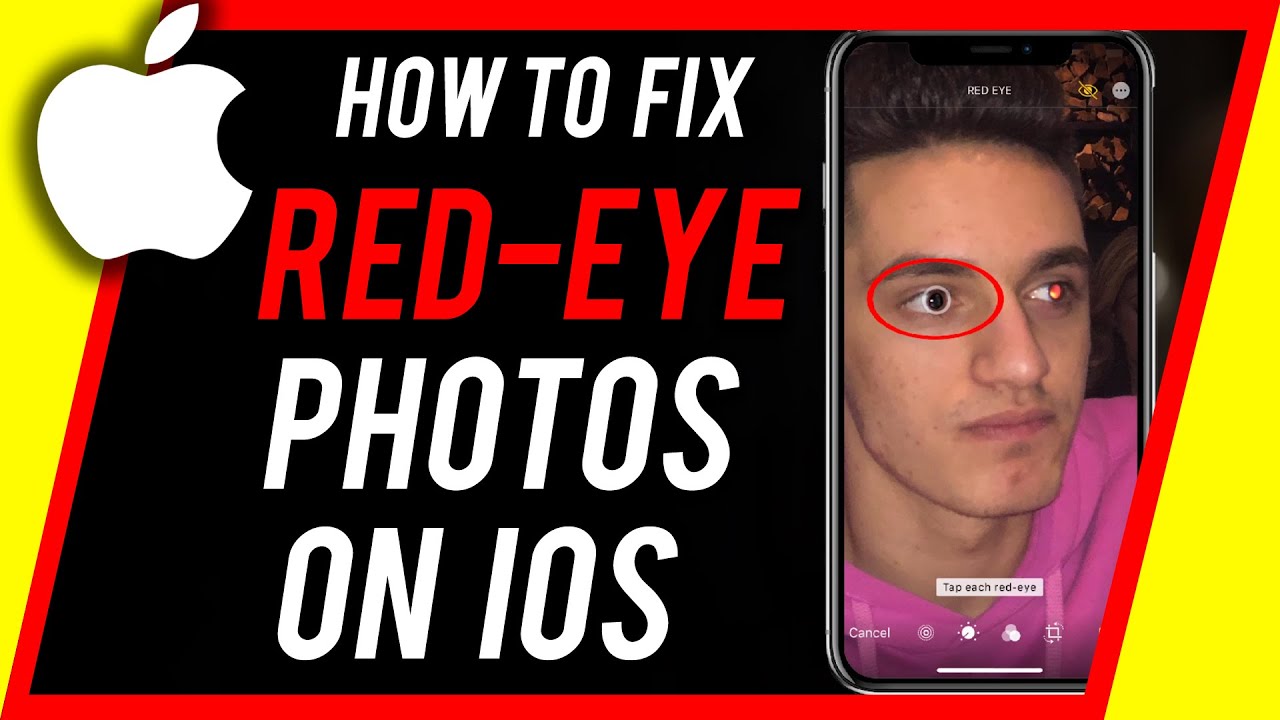
The best and most reliable way to perform iPhone red eye correction is by using the Photos app that is already installed on your device. Apple includes a specific, dedicated tool for this task.
Step-by-Step Guide: How To Fix Red Eye Iphone Using Built-in Tools
This process is non-destructive, meaning you can always revert to the original photo if you aren't happy with the results. Follow these steps carefully to master the art of red eye removal.
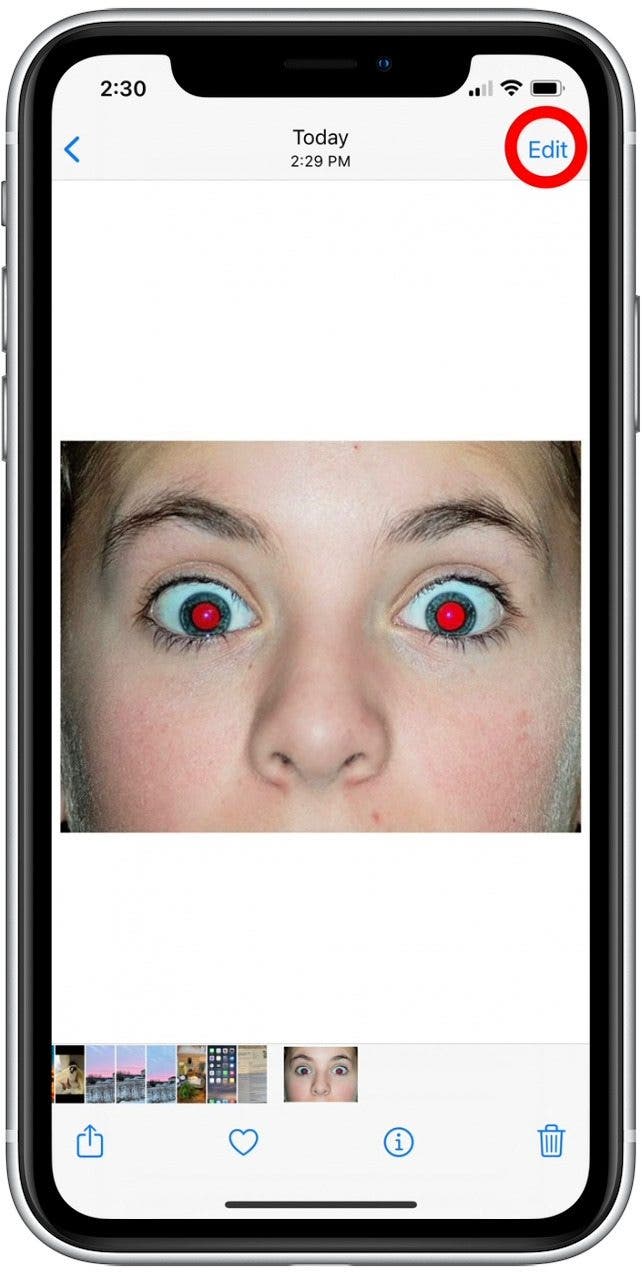
- Open the Photo: Launch the Photos app and find the picture you want to edit.
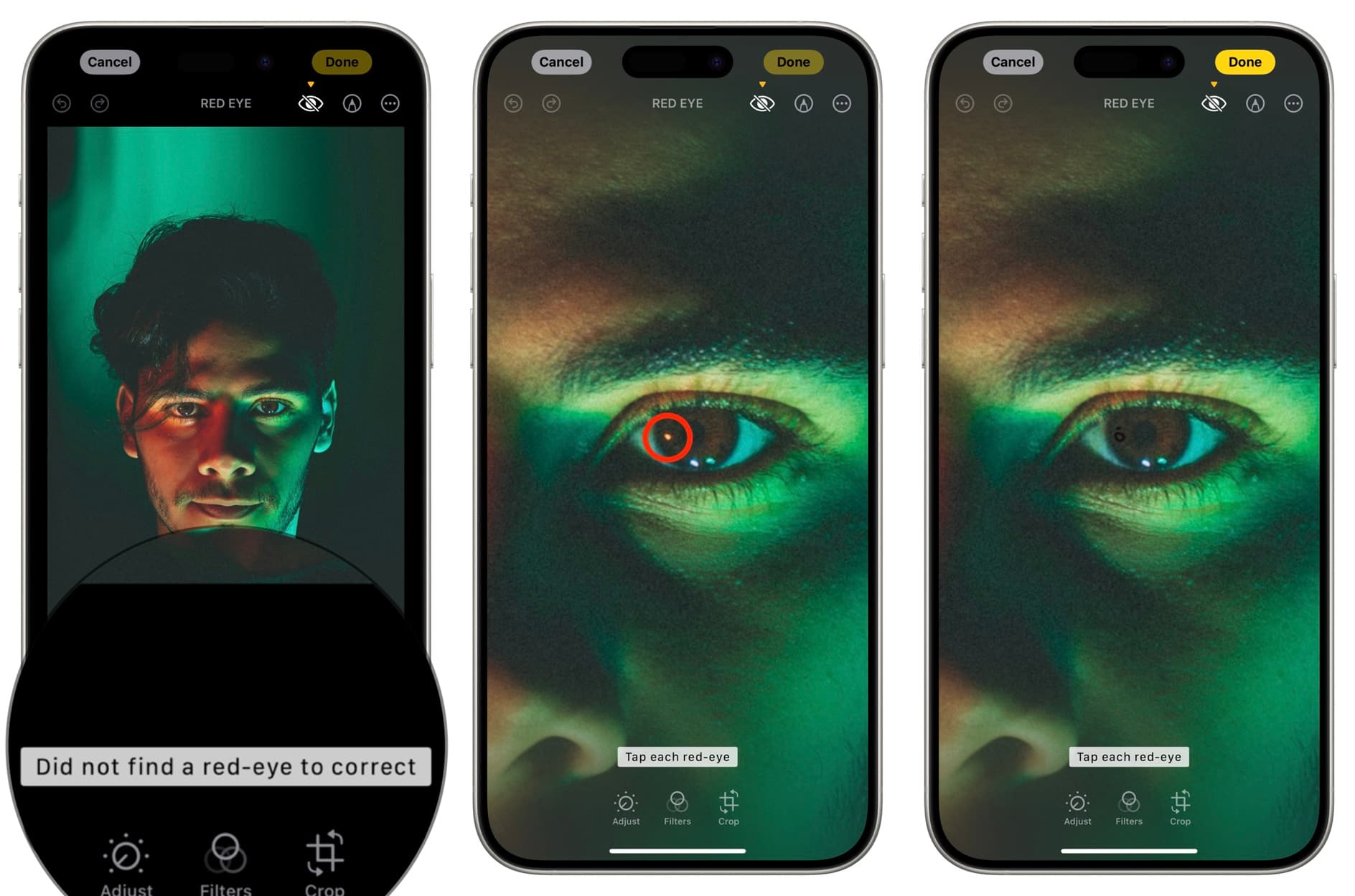
- Enter Edit Mode: Tap "Edit" in the upper right corner of the screen. This brings up all your editing options.
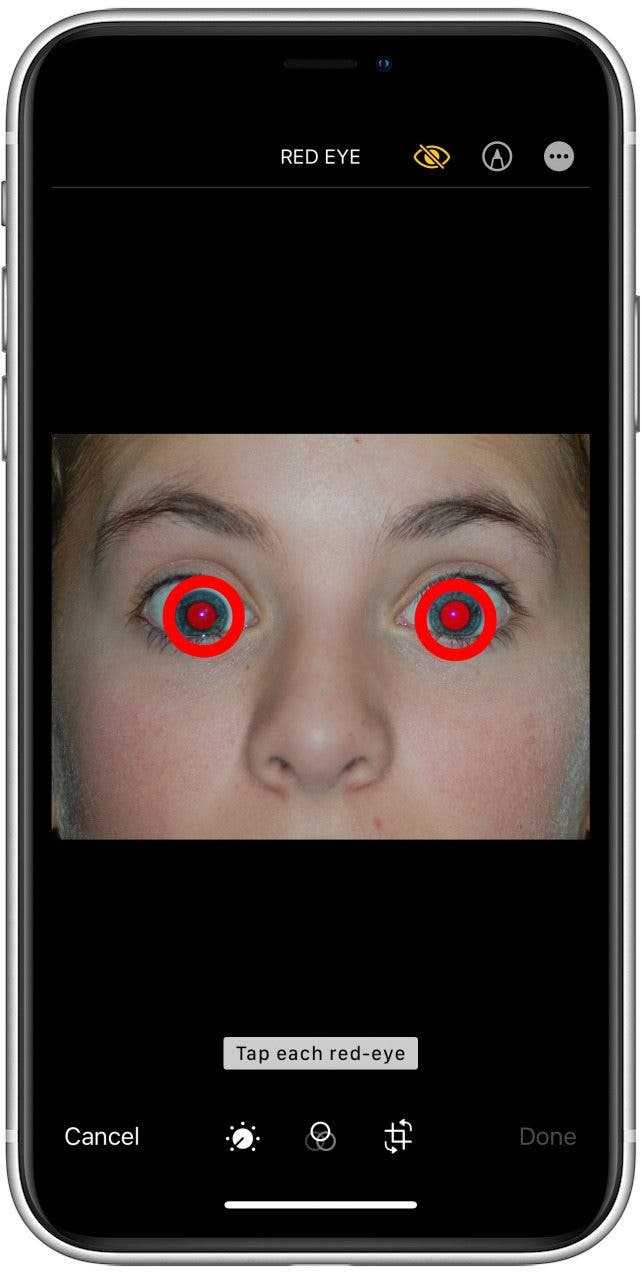
- Locate the Red Eye Tool: Look for the icon that looks like a crossed-out eye (often located near the crop or filter icons). Tap this tool.
- Apply the Fix: The screen will instruct you to "Tap each red eye." Gently tap the center of the red pupil in the photo. The iPhone's software will automatically analyze the area and correct the color, turning the red spot into a natural-looking pupil.
- Repeat and Save: If there are multiple people or multiple red spots, repeat the tapping action on each one. Once you are satisfied with the result, tap "Done" to save the changes.
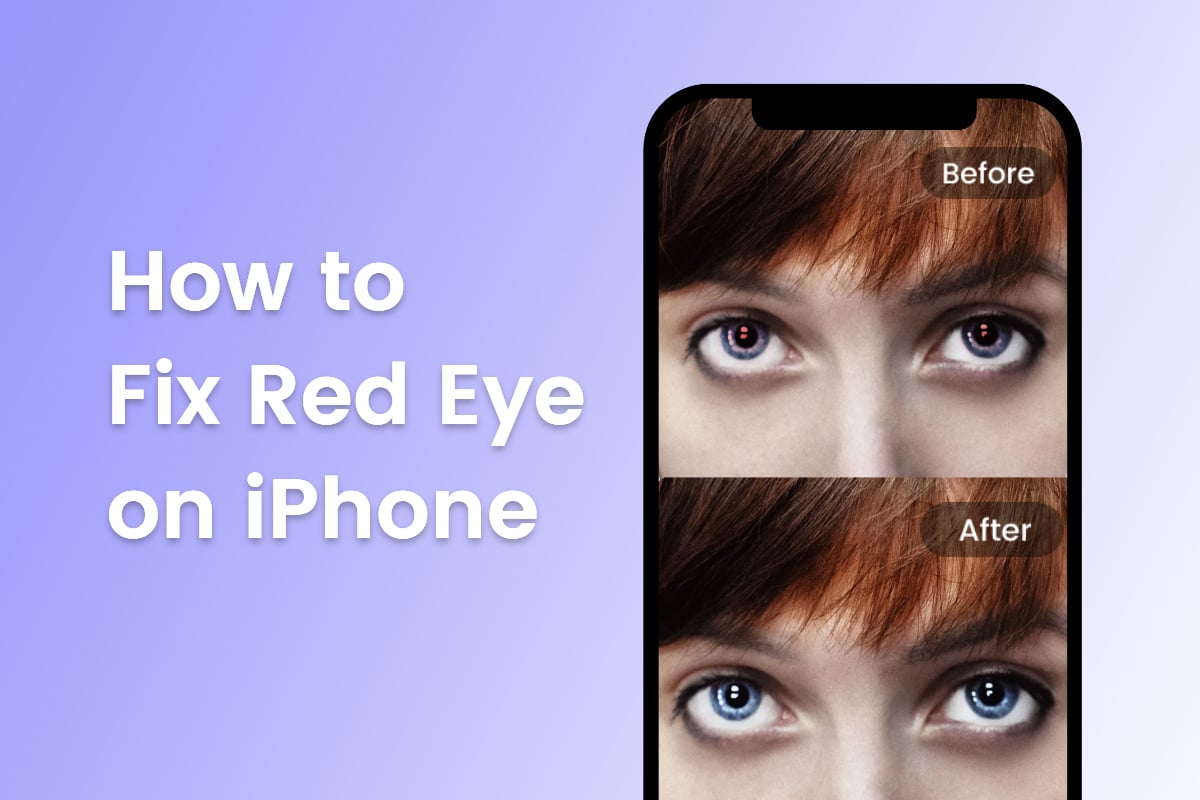
That's it! In just five simple steps, you have successfully learned how to fix red eye iPhone photos quickly and efficiently. This built-in tool is surprisingly accurate for most cases.
When the Built-in Tool Fails: Manual Adjustments
Occasionally, the automatic red eye tool might not work perfectly, especially if the lighting was very unusual or the red spot is distorted. If the tool struggles, you have a couple of manual options available within the Photos app:
- Adjusting Exposure: Sometimes dimming the overall exposure or using the "Brilliance" tool can minimize the harshness of the red reflection, making the area look more subtle.
- Using the Retouch Tool (Markup): While not a dedicated red eye remover, you can enter the Markup section of the editor and use the "Pen" or "Pencil" tool. Zoom in close and carefully color over the red area with a dark grey or black color. This requires a steady hand but can be effective for stubborn spots.
Advanced Techniques and Third-Party Apps
While the native Apple solution handles 90% of red eye issues, professional photographers or those needing more precise control might look toward third-party editing applications. These apps often provide more nuanced control over color correction and spot removal.
Why Consider Third-Party Red Eye Apps?
External apps offer benefits such as layering, selective brush tools, and advanced color balancing that go beyond simple red eye correction. If you need a comprehensive photo editing suite, these are great choices.
Some highly recommended apps that help you fix red eye on iPhone include:
- Adobe Lightroom Mobile: Offers powerful masking and healing brush tools that can precisely target and remove unwanted reflections.
- Snapseed (Google): Features a "Healing" tool that is fantastic for precise spot removal, easily covering the red area with surrounding pixels.
- Facetune/Perfect365: While geared toward portrait touch-ups, they often include dedicated eye correction tools that are very effective.
Quick Edits with External Photo Editors
When using an external editor, look for tools labeled "Spot Healing," "Clone Stamp," or "Brush Adjustment." These give you granular control, allowing you to sample a nearby healthy pupil and clone or brush it over the affected area.
Remember to always work on a zoomed-in version of the image to ensure your correction blends seamlessly. The key to successful external editing is patience and subtle application.
Preventing Red Eye Before Taking the Shot
While fixing red eye after the fact is straightforward, preventing it entirely saves time and effort. A little preparation goes a long way, especially when using your iPhone camera in the dark.
Here are several tips to minimize the chances of capturing that eerie glow:
- Increase Ambient Lighting: The number one cause of red eye is dim lighting. Turn on a lamp or ambient light source nearby. This causes pupils to contract, reducing the amount of reflected light.
- Avoid Direct Eye Contact with the Lens: Ask your subject to look slightly away from the camera lens, perhaps just over your shoulder. If the light isn't reflecting directly back into the lens, red eye won't occur.
- Use Bounce Flash (If Possible): While harder to achieve with an iPhone, if you are using an external lighting setup, bouncing the flash off a nearby wall or ceiling drastically softens the light and changes the angle of reflection.
- Use Continuous Shooting Mode: If your iPhone supports it, rapid firing photos might catch the subject before their eyes can fully dilate in reaction to the flash.
- Move Closer: Surprisingly, getting physically closer to your subject can sometimes help the iPhone's automatic flash calibration system work better, reducing the intensity needed for illumination.
By implementing these simple preventative measures, you will find yourself needing to learn how to fix red eye iPhone issues far less often.
Conclusion
Dealing with unwanted red eye in your iPhone photos doesn't have to be a headache. Whether you choose the quick and simple route using the built-in Photos app red eye correction tool or opt for a third-party app for more precise manual editing, the solution is readily available on your device.
Remember that the easiest way to combat this issue is always prevention—use proper lighting and ask subjects to adjust their gaze. If the red eye does appear, however, you now know exactly how to fix red eye iPhone pictures instantly, ensuring your cherished memories look perfect every time you view them.
Frequently Asked Questions (FAQ) About iPhone Red Eye Correction
- Can I fix red eye on older iPhone models?
- Yes! The red eye correction tool has been a standard feature in the iOS Photos app for many years. As long as your iPhone is running a reasonably updated version of iOS (generally iOS 7 or newer), the tool should be available in the Edit menu.
- Why does my iPhone sometimes automatically fix red eye?
- Modern iPhones and iOS versions have increasingly sophisticated image processing. In certain scenarios, especially when using the native flash, the iPhone attempts to detect and correct red eye during the capture process itself, sometimes even before you see the final image in your camera roll.
- Does the red eye tool work for "pet eye" (green or yellow glow)?
- Unfortunately, the dedicated Apple red eye tool is primarily optimized for the human eye, which reflects red. Pet eyes often reflect green or yellow due to the tapetum lucidum layer. While the dedicated tool might struggle, third-party apps with advanced spot healing tools (like Snapseed) are excellent for tackling pet eye issues.
- Is the red eye fix permanent?
- When you use the Photos app to save the fix, the edit is applied to the image. However, because iPhone editing is non-destructive, you can always go back into the Edit menu and select "Revert" or "Revert to Original" to undo the red eye correction and any other edits made to the photo.
How To Fix Red Eye Iphone
How To Fix Red Eye Iphone Wallpapers
Collection of how to fix red eye iphone wallpapers for your desktop and mobile devices.
Mesmerizing How To Fix Red Eye Iphone Design Nature
Explore this high-quality how to fix red eye iphone image, perfect for enhancing your desktop or mobile wallpaper.
Dynamic How To Fix Red Eye Iphone Wallpaper in 4K
This gorgeous how to fix red eye iphone photo offers a breathtaking view, making it a perfect choice for your next wallpaper.
Dynamic How To Fix Red Eye Iphone Design for Your Screen
Immerse yourself in the stunning details of this beautiful how to fix red eye iphone wallpaper, designed for a captivating visual experience.
High-Quality How To Fix Red Eye Iphone Photo Art
Experience the crisp clarity of this stunning how to fix red eye iphone image, available in high resolution for all your screens.

Amazing How To Fix Red Eye Iphone Wallpaper Art
Explore this high-quality how to fix red eye iphone image, perfect for enhancing your desktop or mobile wallpaper.

Artistic How To Fix Red Eye Iphone Abstract Digital Art
This gorgeous how to fix red eye iphone photo offers a breathtaking view, making it a perfect choice for your next wallpaper.
Detailed How To Fix Red Eye Iphone Abstract for Desktop
Explore this high-quality how to fix red eye iphone image, perfect for enhancing your desktop or mobile wallpaper.
Beautiful How To Fix Red Eye Iphone Capture Photography
Discover an amazing how to fix red eye iphone background image, ideal for personalizing your devices with vibrant colors and intricate designs.

Dynamic How To Fix Red Eye Iphone Capture for Desktop
A captivating how to fix red eye iphone scene that brings tranquility and beauty to any device.

Exquisite How To Fix Red Eye Iphone View Photography
Immerse yourself in the stunning details of this beautiful how to fix red eye iphone wallpaper, designed for a captivating visual experience.
Vibrant How To Fix Red Eye Iphone Capture Illustration
Discover an amazing how to fix red eye iphone background image, ideal for personalizing your devices with vibrant colors and intricate designs.

Stunning How To Fix Red Eye Iphone Scene for Desktop
A captivating how to fix red eye iphone scene that brings tranquility and beauty to any device.
Vivid How To Fix Red Eye Iphone Picture for Your Screen
Explore this high-quality how to fix red eye iphone image, perfect for enhancing your desktop or mobile wallpaper.

Gorgeous How To Fix Red Eye Iphone Photo Photography
A captivating how to fix red eye iphone scene that brings tranquility and beauty to any device.
Beautiful How To Fix Red Eye Iphone Moment for Mobile
Transform your screen with this vivid how to fix red eye iphone artwork, a true masterpiece of digital design.

Detailed How To Fix Red Eye Iphone Photo Art
Explore this high-quality how to fix red eye iphone image, perfect for enhancing your desktop or mobile wallpaper.

Gorgeous How To Fix Red Eye Iphone Abstract Nature
Find inspiration with this unique how to fix red eye iphone illustration, crafted to provide a fresh look for your background.

High-Quality How To Fix Red Eye Iphone Moment in HD
Explore this high-quality how to fix red eye iphone image, perfect for enhancing your desktop or mobile wallpaper.

Mesmerizing How To Fix Red Eye Iphone Background Digital Art
Discover an amazing how to fix red eye iphone background image, ideal for personalizing your devices with vibrant colors and intricate designs.

Amazing How To Fix Red Eye Iphone Wallpaper Collection
Explore this high-quality how to fix red eye iphone image, perfect for enhancing your desktop or mobile wallpaper.
Download these how to fix red eye iphone wallpapers for free and use them on your desktop or mobile devices.
0 Response to "How To Fix Red Eye Iphone"
Post a Comment