How To Fix Red Eye In Photos
How To Fix Red Eye In Photos: Simple Steps to Gorgeous Pictures
We've all been there. You capture that perfect moment—a birthday candle blowout, a late-night group selfie—only to review the photos and find your loved ones staring back at you with glowing, demonic red eyes. It's frustrating, right? That pesky red eye effect can ruin an otherwise fantastic photo.
The good news is that you don't need to be a professional photographer or a Photoshop guru to banish the crimson glow. This comprehensive guide will walk you through exactly How To Fix Red Eye In Photos, covering everything from simple prevention techniques to digital correction tools. Let's reclaim those beautiful memories!
Understanding the Culprit: Why Does Red Eye Happen Anyway?
Before we dive into the fixes, it helps to know what causes the problem. The red eye effect occurs when a camera flash is used in low-light conditions. When the light is dim, your subject's pupils dilate (get larger) to absorb more light.
When the flash fires, the burst of light travels so fast and so directly into the eye that it reflects off the retina—the blood-rich tissue at the back of the eye—before the pupil has time to contract. Since blood is red, the reflected light captured by the camera turns the pupil red.
It's a natural biological response, not a fault of the camera, but knowing the cause makes prevention much easier!
Preventing Red Eye: Tips Before You Shoot
The best way to fix red eye in photos is actually to avoid the problem entirely. By making a few small adjustments before you press the shutter button, you can significantly reduce the chances of getting those glowing eyes.
Here are some simple preventative steps you can take:
- Turn the Lights On: If possible, increase the ambient light in the room. This causes the subject's pupils to contract naturally, reducing the amount of retina exposed to the flash.
- Use the Anti-Red Eye Feature: Most modern cameras and smartphones have a dedicated red-eye reduction mode. This usually fires a quick pre-flash before the main flash. This initial burst causes the pupil to shrink just before the picture is actually taken.
- Look Away Briefly: Ask your subject to look slightly away from the camera lens, perhaps towards your shoulder or ear. Since the flash is no longer reflecting straight back into the lens, the effect is minimized.
- Use Continuous Shooting Mode: If your camera allows, use the continuous shooting mode (burst mode) with the pre-flash enabled. The first picture uses the pre-flash to contract the pupils, and subsequent shots often capture natural eyes.
Adjusting Lighting and Distance
One of the key variables in red eye prevention is the relationship between the flash, the lens, and the subject. When the flash is too close to the lens, the light angle is too direct, which is a recipe for red eye.
If you are using a compact camera or a smartphone, try moving closer to your subject. Counterintuitively, standing closer often means the flash can be slightly less intense while still providing enough light, reducing the harsh reflection. However, the most effective preventative measure is separation.
Using External Flash
If you have a DSLR or mirrorless camera, investing in an external flash unit is a game-changer. Why? Because you can physically move the light source away from the lens's axis.
By positioning the external flash above or to the side of the lens, or better yet, bouncing the flash off a nearby wall or ceiling, the light hits the subject indirectly. This subtle change in angle ensures the light reflecting off the retina doesn't travel straight back into the lens. This is the professional secret to eliminating red eye.
The Digital Fix: Software Solutions for Red Eye Removal
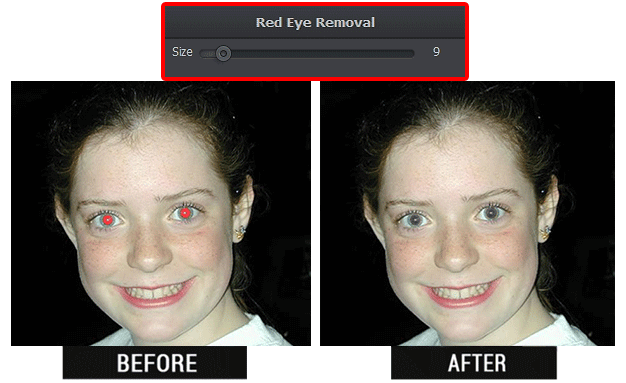
Okay, so prevention failed, and you're stuck with photos of glowing-eyed ghouls. Don't worry! Thankfully, modern digital tools make it extremely easy to fix red eye in photos after the fact. Most software uses sophisticated algorithms to detect the red pixels and replace them with a natural pupil color.
The method you choose depends on how much control you need and what devices you have access to.
Using Built-in Smartphone Tools
For quick fixes on the go, your phone is often the easiest solution. Many native photo apps (like Apple Photos or Google Photos) have dedicated red eye removal features.
These tools are incredibly simple to use:
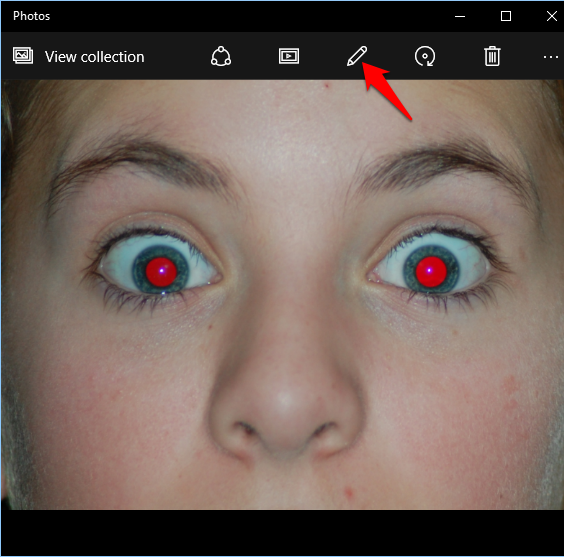
- Open the photo in your native editing app.
- Look for an "Adjust" or "Edit" button.
- Often, there is a separate tool icon that looks like an eye or a crosshair. Tap it.
- The app may automatically detect and correct the red eye, or you may simply need to tap the center of the red pupil.
This method is fast, efficient, and usually provides excellent results for standard photos.
Advanced Editing Software
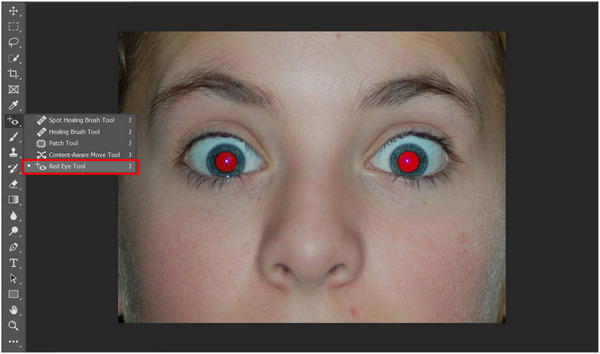
If you need more control—perhaps the subject is far away, the lighting is challenging, or you need to adjust color depth—professional programs like Adobe Photoshop or GIMP are the way to go. These tools give you manual control over the size and darkness of the replacement pupil.
Step-by-Step in Popular Editing Apps
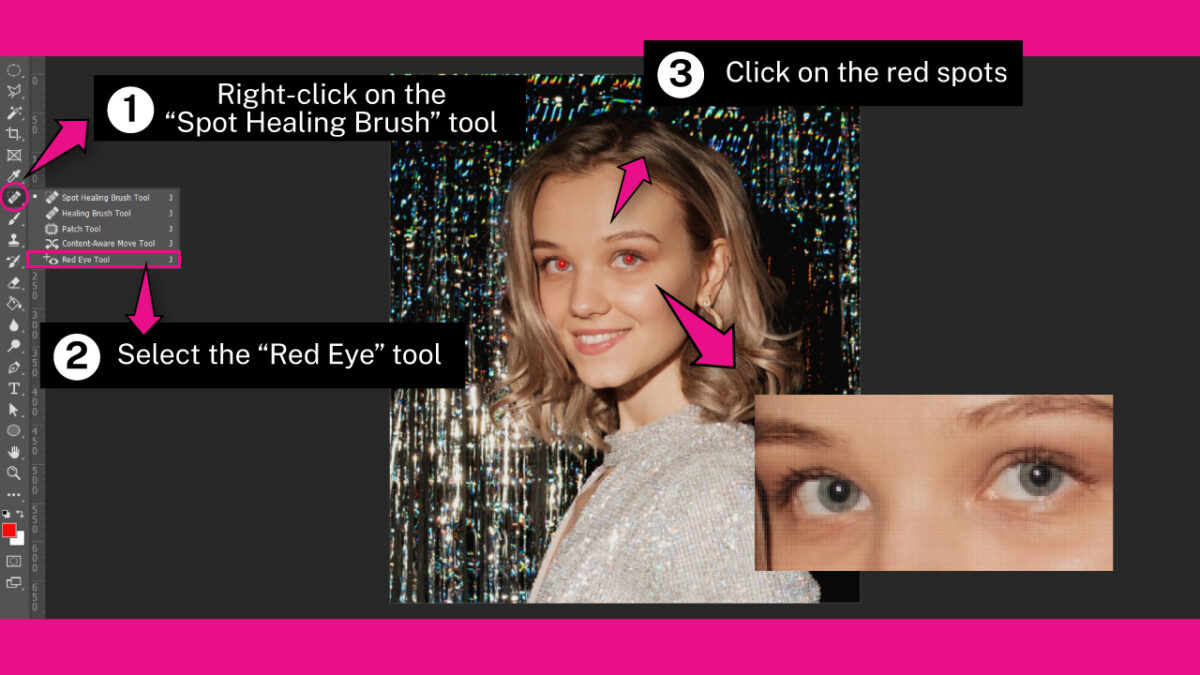
Let's look at the basic steps for using dedicated red eye tools found in many desktop editing suites like Photoshop or Affinity Photo. This technique is reliable for manually adjusting the correction:
- Select the Tool: Navigate to the spot healing brush tool group and select the "Red Eye Tool."
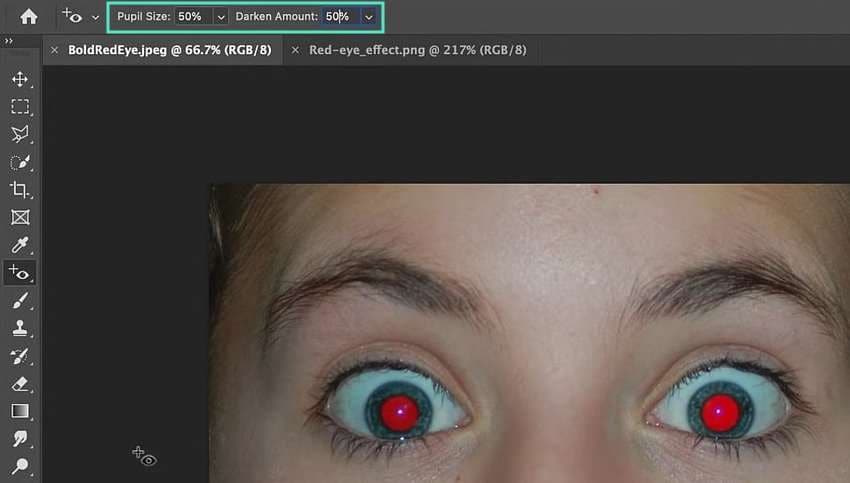
- Adjust Settings (If Applicable): Some tools allow you to adjust the "Pupil Size" and "Darken Amount." Start with default settings, but adjust these if the resulting pupil looks too small or too faint.
- Click and Drag: Click on the red pupil and drag a box around the entire red area. The tool will instantly analyze the area and replace the red reflection with a natural black or dark gray color.
- Review and Refine: Zoom in closely to ensure the edges of the newly corrected pupil are sharp and natural. If the correction looks harsh, try adjusting the darken setting slightly lower.
Remember, the goal is not just to remove the red, but to make the eye look natural and lively again.
Troubleshooting Common Red Eye Removal Issues
Sometimes, simply clicking the "Red Eye Tool" doesn't quite work perfectly. Here are a couple of common issues and their quick fixes:
What about the dreaded "Green Eye" effect?
Occasionally, photos of animals (especially pets like cats and dogs) result in a greenish or yellowish glow, often called "pet eye." This is essentially the same physiological phenomenon as red eye, but the reflective layer behind the retina (the tapetum lucidum) reflects a different color.
Most advanced red eye removal tools can handle this variation automatically. If the automated tool struggles, you may need to use a manual color correction tool (like Hue/Saturation) to desaturate the green/yellow area, or simply use a soft black brush to paint over the reflection carefully.
When the Red Eye Tool leaves a harsh edge.
If the corrected pupil looks too sharp or pasted on, it usually means the contrast between the corrected pupil and the surrounding iris is too high. In advanced editors, try using a very soft brush setting or slightly decreasing the opacity of the darkening tool. Blending the edges subtly makes a huge difference in achieving a realistic look.
When the tool doesn't detect the red area.
If the red color is faint or mixed with other colors, automatic tools may miss it. In this case, use a manual selection tool (like the lasso tool) to precisely select the red area, and then apply a "Desaturate" or "Black & White" filter only to that selection. Then, use a small, soft brush to paint in the reflected light highlights to keep the eye looking alive.
Conclusion
Red eye is a perennial nuisance in photography, but it's certainly not a permanent destroyer of beautiful photos. By taking simple preventative measures—like boosting ambient light or separating the flash from the lens—you can avoid the problem before it starts.
If those crimson reflections still sneak into your shots, know that whether you rely on the quick tap of your smartphone's built-in tool or the precision of desktop software, knowing How To Fix Red Eye In Photos is a quick and straightforward editing skill. Now go forth and edit those glowing eyes back into brilliant, natural memories!
Frequently Asked Questions (FAQ)
- Can I fix red eye without any special software?
- Yes! If you have a modern smartphone, chances are the default photo editing app (like Apple Photos or Google Photos) has a simple, one-tap tool specifically designed for red eye removal. No third-party software purchase is necessary for basic fixes.
- Why do some people get red eye more easily than others?
- Individuals with larger pupils (often those with light-colored irises) are more susceptible because the flash has an easier time reaching the retina. Children often experience red eye frequently because their pupils dilate faster than adults'.
- Does the red eye effect mean the photo is low quality?
- Not at all. Red eye is solely a result of the flash reflecting off the back of the eye and has nothing to do with the camera's resolution or the sharpness of the image. The photo quality remains the same, only the appearance of the eye is affected.
- Is it better to prevent red eye or fix it later?
- Prevention is always better. While digital tools are fantastic, they can sometimes leave subtle, unnatural artifacts or harsh edges. Correcting the lighting beforehand ensures the most natural result possible.
How To Fix Red Eye In Photos
How To Fix Red Eye In Photos Wallpapers
Collection of how to fix red eye in photos wallpapers for your desktop and mobile devices.
Stunning How To Fix Red Eye In Photos Photo for Desktop
Immerse yourself in the stunning details of this beautiful how to fix red eye in photos wallpaper, designed for a captivating visual experience.
Vibrant How To Fix Red Eye In Photos Artwork for Desktop
Experience the crisp clarity of this stunning how to fix red eye in photos image, available in high resolution for all your screens.

Detailed How To Fix Red Eye In Photos Picture Art
Explore this high-quality how to fix red eye in photos image, perfect for enhancing your desktop or mobile wallpaper.
Detailed How To Fix Red Eye In Photos Capture Collection
Experience the crisp clarity of this stunning how to fix red eye in photos image, available in high resolution for all your screens.
Amazing How To Fix Red Eye In Photos Artwork for Desktop
Discover an amazing how to fix red eye in photos background image, ideal for personalizing your devices with vibrant colors and intricate designs.

Spectacular How To Fix Red Eye In Photos Scene Nature
Immerse yourself in the stunning details of this beautiful how to fix red eye in photos wallpaper, designed for a captivating visual experience.

Amazing How To Fix Red Eye In Photos Landscape in HD
Transform your screen with this vivid how to fix red eye in photos artwork, a true masterpiece of digital design.

Serene How To Fix Red Eye In Photos Capture for Your Screen
Experience the crisp clarity of this stunning how to fix red eye in photos image, available in high resolution for all your screens.
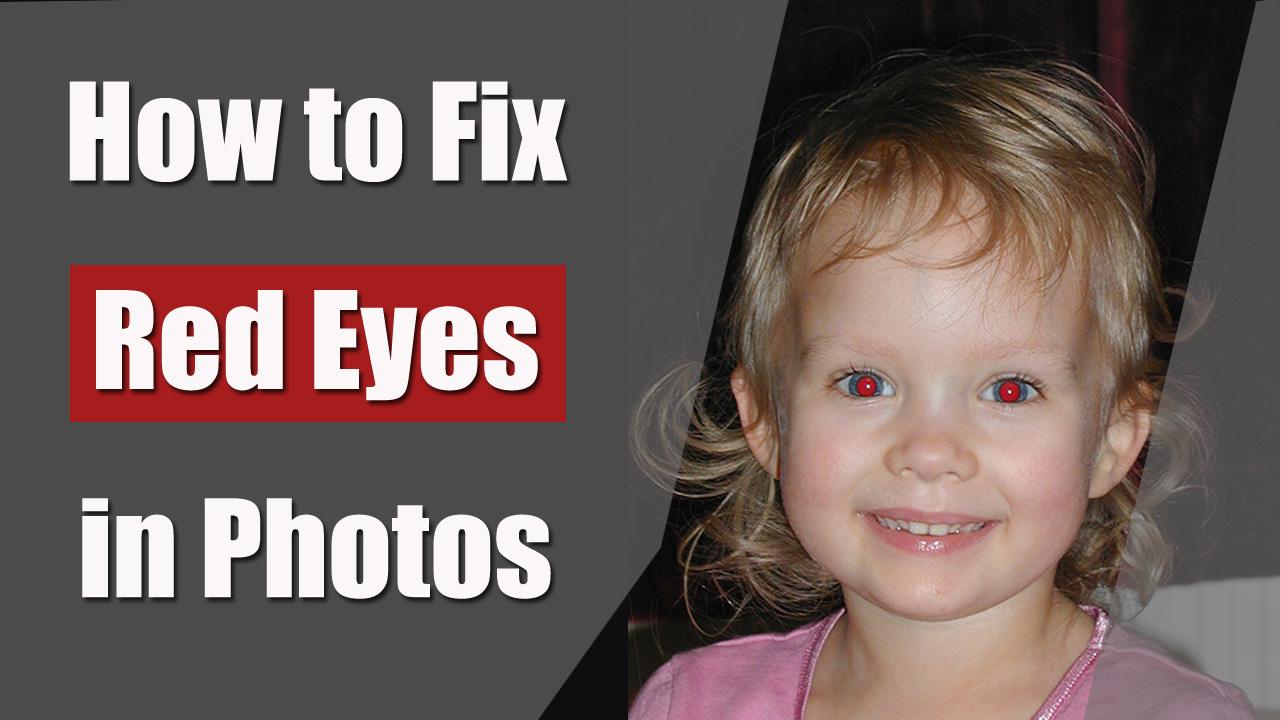
Vibrant How To Fix Red Eye In Photos Background Illustration
Discover an amazing how to fix red eye in photos background image, ideal for personalizing your devices with vibrant colors and intricate designs.

Mesmerizing How To Fix Red Eye In Photos Photo Photography
Transform your screen with this vivid how to fix red eye in photos artwork, a true masterpiece of digital design.

Serene How To Fix Red Eye In Photos Design Concept
Explore this high-quality how to fix red eye in photos image, perfect for enhancing your desktop or mobile wallpaper.

Vivid How To Fix Red Eye In Photos Design for Your Screen
Explore this high-quality how to fix red eye in photos image, perfect for enhancing your desktop or mobile wallpaper.

Spectacular How To Fix Red Eye In Photos Moment Digital Art
This gorgeous how to fix red eye in photos photo offers a breathtaking view, making it a perfect choice for your next wallpaper.

Artistic How To Fix Red Eye In Photos Design in 4K
Find inspiration with this unique how to fix red eye in photos illustration, crafted to provide a fresh look for your background.

Lush How To Fix Red Eye In Photos Artwork Collection
Find inspiration with this unique how to fix red eye in photos illustration, crafted to provide a fresh look for your background.

Serene How To Fix Red Eye In Photos Moment Concept
Discover an amazing how to fix red eye in photos background image, ideal for personalizing your devices with vibrant colors and intricate designs.
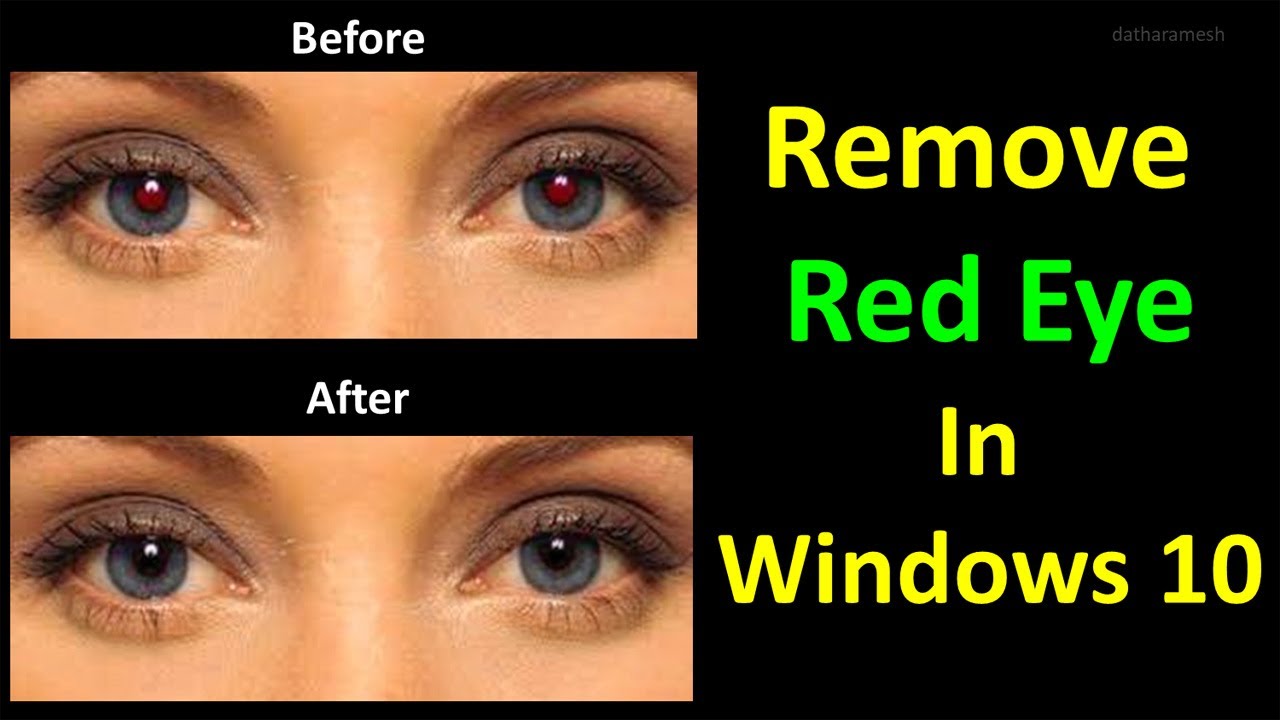
Lush How To Fix Red Eye In Photos Background Art
Find inspiration with this unique how to fix red eye in photos illustration, crafted to provide a fresh look for your background.

Lush How To Fix Red Eye In Photos Picture in 4K
Find inspiration with this unique how to fix red eye in photos illustration, crafted to provide a fresh look for your background.
Gorgeous How To Fix Red Eye In Photos Artwork in HD
Immerse yourself in the stunning details of this beautiful how to fix red eye in photos wallpaper, designed for a captivating visual experience.
Gorgeous How To Fix Red Eye In Photos Landscape Digital Art
A captivating how to fix red eye in photos scene that brings tranquility and beauty to any device.
Download these how to fix red eye in photos wallpapers for free and use them on your desktop or mobile devices.
0 Response to "How To Fix Red Eye In Photos"
Post a Comment